
Dialogue-led vertical clips
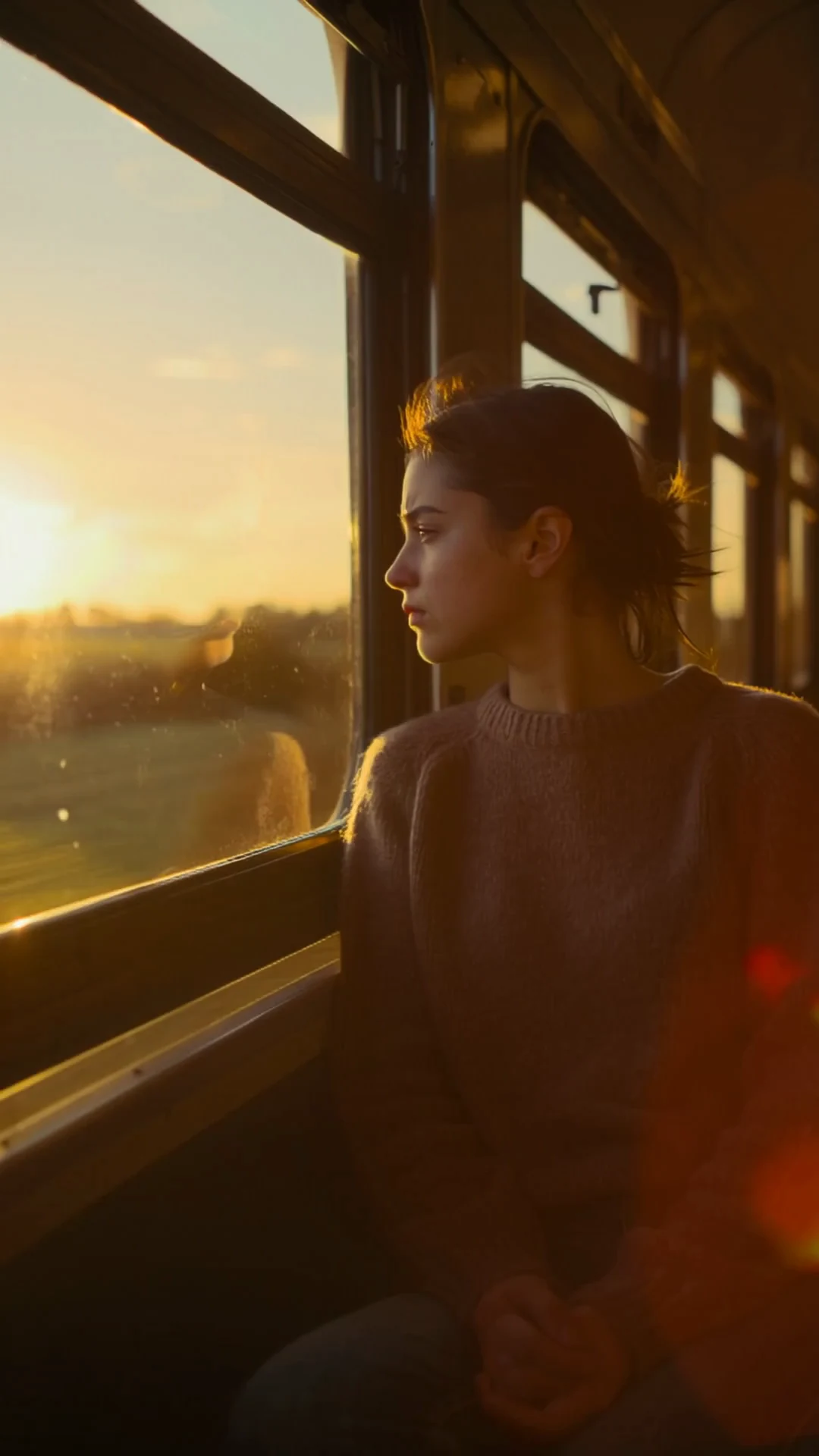
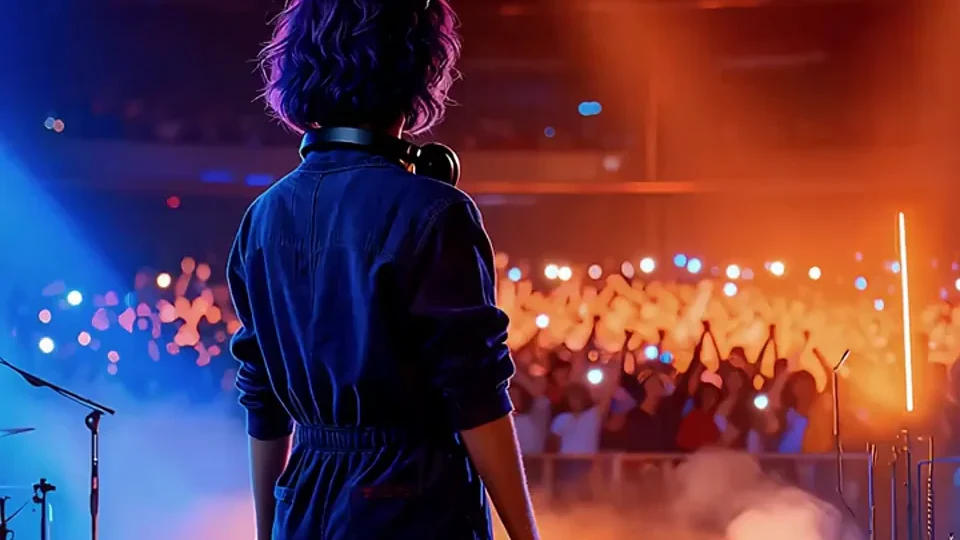
Choose 9:16 and give the first line to one visible speaker. Time a pause and a reply to leave edit points for captions. Check whether the action still reads when muted.
- Spoken hook
- Reaction shot
Make 4–30 second 1080p videos with MAGI-2 AI and optional native synchronized audio. Start with text, a first frame, or references. See the credit cost before you generate.
MAGI-2 AI is a browser-based studio for Sand AI’s MAGI-2, a 480B-parameter multi-head latent mixture-of-experts (MoE) model released November 24, 2026. It generates 4–30 second video at 1080p and 25 fps with optional native synchronized audio for dialogue, sound effects, and music. The studio offers Text-to-Video from a prompt, Image-to-Video from a first frame with an optional last frame, and Reference-to-Video from a prompt plus image, video, or audio references. Runs cost 17.6 credits per second, rounded up per clip. A 4-second clip costs 71 credits, 5 seconds costs 88, 10 seconds costs 176, 15 seconds costs 264, and 30 seconds costs 528. Basic costs $29.90 per month and includes 800 credits, enough for one full 30-second clip. Audio and references carry no surcharge. MAGI-2 AI (magi-2-ai.video) is an independent third-party platform and is not affiliated with or endorsed by Sand AI.
Start with what you already have: a script, an approved frame, or references to keep a scene consistent.
Describe the opening composition, what changes, and the final beat. MAGI-2 AI accepts prompts from 1 to 15,000 characters in this mode. Put dialogue and sound cues in the order you want them to play.
Six framing options
Choose 21:9, 16:9, 4:3, 1:1, 3:4, or 9:16. Frame for the destination before committing credits to the shot.
Audio by default
Generate the soundtrack with the picture. Leave audio on for dialogue or turn it off if you plan to add sound in an editor.
Check the inputs your shot needs, the credits it will consume, and what to verify if you are weighing another model.
Give each sound a source and a cue. A hiss after a latch opens gives you a specific moment to review. Check lip movement against the spoken line.
A four-second test costs 71 credits and can isolate one action. A thirty-second take costs 528. An unused Basic monthly allocation of 800 credits leaves 272 after one full-length run.
Jobs run in an asynchronous queue. Wait time varies with provider load and the job. Use My Creations to check progress. When a run fails, the studio automatically returns the full credit charge to your balance.
| Mode | Required and optional inputs | Aspect ratio |
|---|---|---|
| Text to Video | Prompt of 1–15,000 characters | 21:9, 16:9, 4:3, 1:1, 3:4, 9:16 |
| Image to Video | First frame required. Last frame and prompt optional. | Follows the first frame |
| Reference to Video | Prompt with one or more references. Limits are 10 images, 5 video files, and 5 audio files. | Same six choices as Text to Video |
Every mode renders 4–30 seconds at 1080p and 25 fps. Audio is optional. For video and audio references, each file runs 2–30 seconds, with separate 30-second totals for video and for audio.
| Output duration | Credits per run |
|---|---|
| 4 seconds | 71 |
| 5 seconds | 88 |
| 10 seconds | 176 |
| 15 seconds | 264 |
| 30 seconds | 528 |
The generator quotes 17.6 credits per output second and rounds up the total. Audio and references add $0. A failed run triggers an automatic full credit refund.
| Model or version | What matters for your shot |
|---|---|
| MAGI-2 AI | This studio runs the released version of MAGI-2. It publishes three input contracts, a 30-second ceiling, optional native audio, and a single duration-based rate. |
| MAGI-2 Preview | Confirm the preview endpoint separately. The credits in the table above apply to the released model used in this studio. |
| Seedance 2.5 | Seedance lists limits of 30 images, 10 video files, and 10 audio files. Reference-video seconds count toward the total charge. Here, MAGI-2 AI charges only for output seconds. |
| Kling 3.0 | Kling supports 3–15 seconds, three aspect ratios, and different quality tiers, including 4K. Compare Kling’s separate shot prompts with the time and framing you need in a single MAGI-2 AI run. |
| Veo 3.1 | Veo supports 16:9 and 9:16 output and a separate extension endpoint. Compare that workflow with specifying up to 30 seconds when you submit a MAGI-2 AI run. |
For a like-for-like test, use the same opening frame, crop, dialogue, and intended final beat. Review the result against the brief and compare the price of a completed shot in each service.
Choose one decision to test in each clip. Framing, sound, and motion are easier to review when you know which one the shot needs to prove.
Choose 9:16 and give the first line to one visible speaker. Time a pause and a reply to leave edit points for captions. Check whether the action still reads when muted.

Animate a cleared packshot. Direct one camera movement and a tactile sound, such as a cap twisting. Supply a last frame if the end card needs room for a price overlay.

Block a scene before a shoot. Describe who moves, what the camera follows, and where the actors pause. A short first pass makes it easier to decide whether the scene needs a cut or should play in one take.

Pair one visible action with a verbal or audible cue. Leave time for an annotation, then check the clip for factual and visual accuracy before using it in a lesson.

Attach references with one role each. Hold product appearance steady while you test a different motion cue or soundtrack. Compare both cuts against the same brief before spending credits on longer variants.

Build a scene around one sound. A door closing or a bike bell can signal a change. Describe what happens before the sound and the reaction the camera should catch.
Set the shot up in the generator, then use the credit quote and task status to plan each iteration.
Choose what MAGI-2 AI should start from: a prompt for a new scene, a first frame for a fixed composition, or references for continuity. Check the mode before adding material.
Set the duration and audio in MAGI-2 AI, then check the credit quote on the Generate button. For a test clip, choose the shortest duration that lets you evaluate the action.
Follow the MAGI-2 AI task in My Creations. Review the first and last frames, listen to the soundtrack, and note where the clip diverges from your brief. Change one instruction at a time so you can tell what improved.
Find the plan, timing, and input limits that apply to your shot.
MAGI-2 AI (magi-2-ai.video) is an independent third-party platform and is not affiliated with or endorsed by Sand AI. Sand AI developed the underlying model, while this site provides a browser interface and its own credit plans.
Free includes 10 welcome credits to explore the studio. Generating MAGI-2 needs Basic or above and enough credits. A four-second job costs 71 credits. Check the quote before choosing a plan.
Basic monthly costs $29.90 for 800 credits. A 30-second MAGI-2 AI clip uses 528 credits, leaving 272 if you began with the full monthly balance.
MAGI-2 AI runs in an asynchronous queue with no fixed completion time. Waits depend on the provider queue and the job, so track the status in My Creations before submitting again. When a run fails, all deducted credits are automatically returned to your balance.
Business-level access supports commercial use under the Terms of Service. Applicable provider terms and third-party rights may restrict how you use input materials and generated videos. Review those terms and obtain any necessary permissions before commercial use.
MAGI-2 AI generates 4–30 second clips at 1080p and 25 fps. Choose a whole-second duration. Text-to-Video and Reference-to-Video let you set the aspect ratio. For Image-to-Video, decide the final crop before uploading the first frame.
Image-to-Video in MAGI-2 AI accepts a first frame without a prompt. Add a prompt when the motion, camera direction, or timing matters. A last frame is optional and gives the generator a specific target for the ending.
Reference-to-Video accepts all three media types together. Provide a prompt and at least one reference. Keep individual video and audio files at 2–30 seconds, total video at 30 seconds or less, and total audio at 30 seconds or less. Trim cues to the portion the shot actually needs.
The credit cost depends on output duration. Generated audio and references carry no surcharge, and disabling audio does not lower the charge. A 10-second clip uses 176 credits in every mode.
Give MAGI-2 AI the speaker, the line, and the event that cues it. For example, have the clerk say “Come in” after the bell rings, then hold on the listener. Review pronunciation, lip movement, and timing on the render before building the rest of the edit.
The released MAGI-2 endpoints are available in this studio. Verify the endpoint name, output length, aspect ratio, audio setting, and run price wherever you test Preview. Use the same shot brief in both tests.
My Creations shows your jobs, their status, and completed clips. Video downloads are available with Basic or above. Check the new quote before submitting a second take.

0 / 15000
Video generation is available on Basic plan and above.
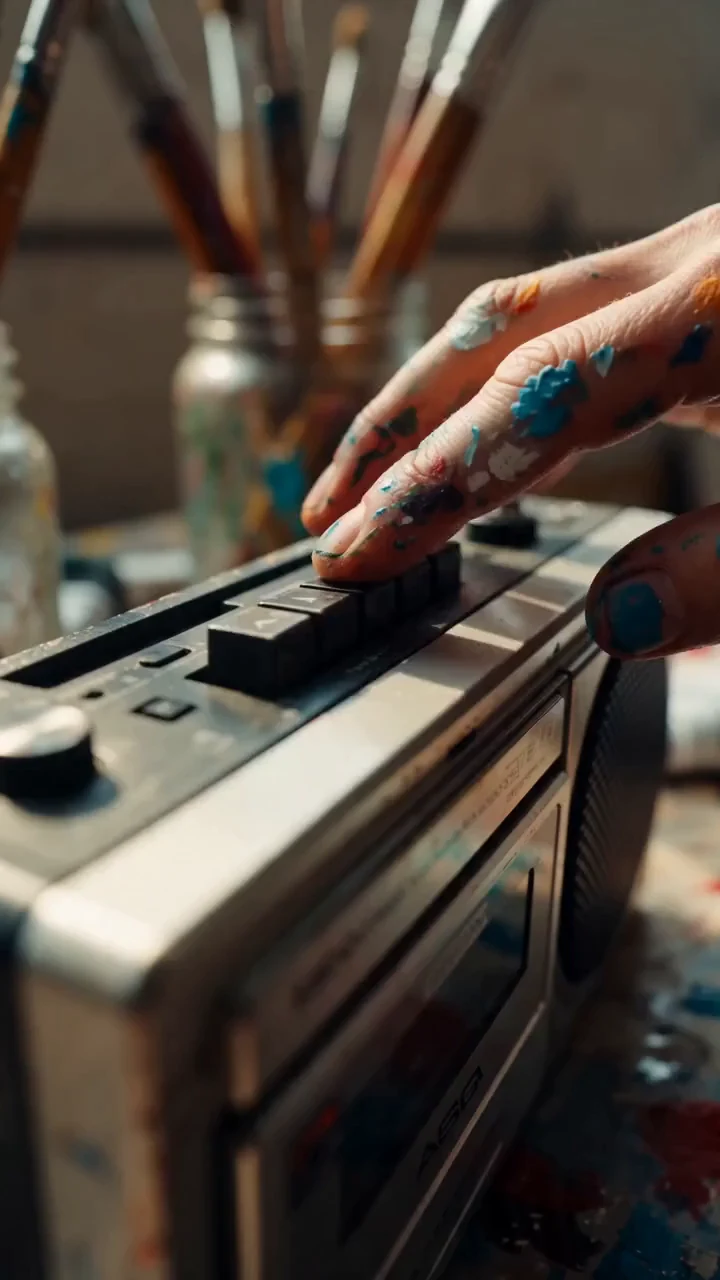
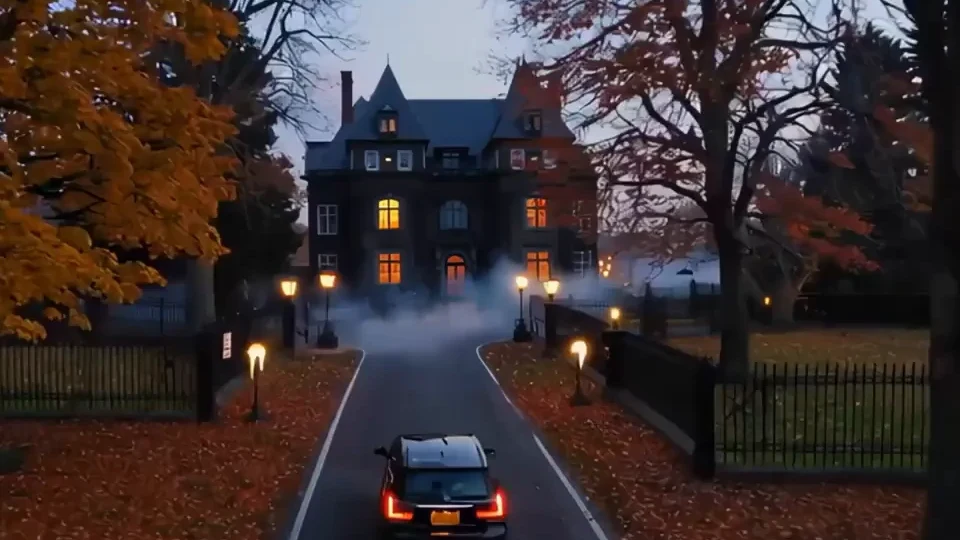
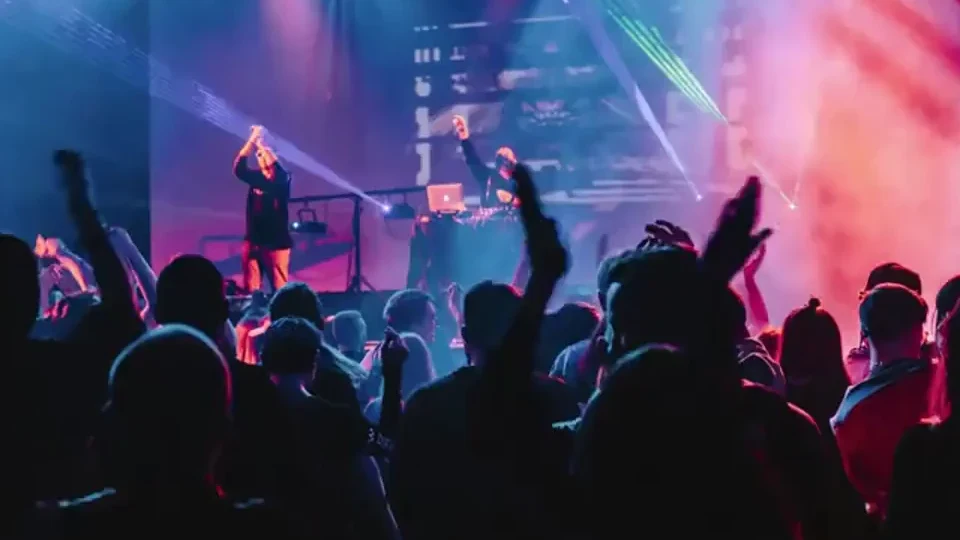
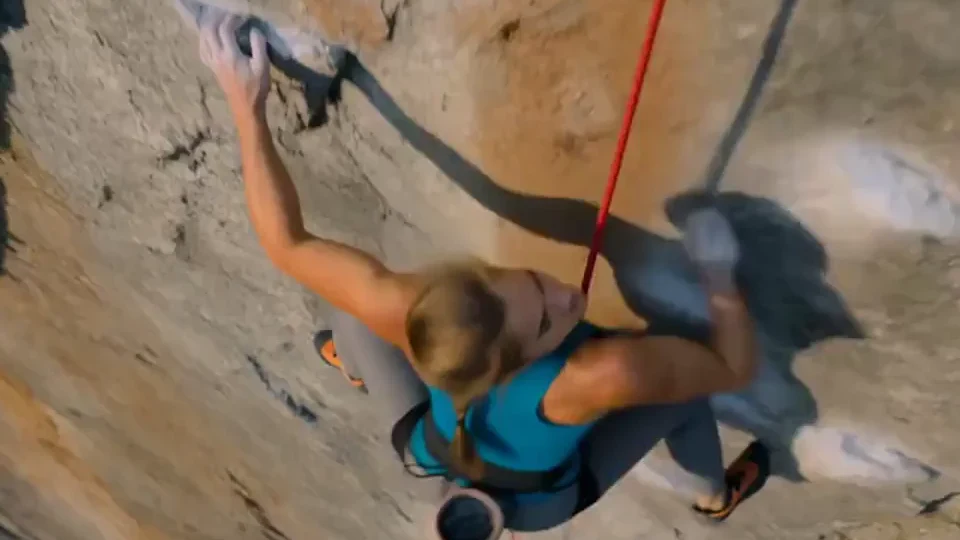
These studio showcase clips illustrate framing, motion, and sound design. Use the shot notes below to plan your own MAGI-2 AI prompt.